TurboSign Bulk API Integration
Send documents for electronic signature at scale. The TurboSign Bulk API allows you to process hundreds or thousands of signature requests in organized batches, with comprehensive tracking and management capabilities.

Overview
The Bulk API is designed for high-volume signature collection scenarios. Instead of sending documents one at a time, you can create batches that process multiple signature requests efficiently.
What is Bulk Sending?
Bulk sending allows you to send the same document to multiple recipients in a single batch operation. Each recipient gets their own personalized copy with customized signature fields and recipient information.
Common Use Cases:
- Employment Contracts: Send offer letters or contracts to multiple new hires
- Client Agreements: Distribute service agreements to hundreds of clients
- Policy Updates: Send updated terms or policies requiring acknowledgment
- Event Registrations: Collect signatures from event participants
- Real Estate: Send disclosure forms to multiple buyers or sellers
- Insurance: Distribute policy documents requiring signatures
Key Benefits
- Efficiency: Create one batch instead of hundreds of individual requests
- Cost Effective: Batch processing optimizes credit usage
- Tracking: Monitor progress across all jobs in a batch
- Management: Cancel, retry, or review jobs as needed
- Scalability: Handle thousands of signature requests seamlessly
- Organization: Group related requests together logically
Key Concepts
Understanding these core concepts will help you effectively use the Bulk API.
Batches
A batch is a container for multiple document send operations. All documents in a batch share the same source file (PDF, template, or deliverable) but can have different recipients and field configurations.
Jobs
A job represents a single document send operation within a batch. Each job corresponds to one set of recipients receiving the shared document.
Source Types
The Bulk API supports four source types for your documents:
| Source Type | Description | When to Use |
|---|---|---|
file | Upload PDF directly | One-time documents, custom content |
deliverableId | Reference existing deliverable | Documents generated from templates |
templateId | Use template directly | Reusable document structures |
fileLink | URL to document | Documents hosted externally |
Batch-Level vs Document-Level Configuration
Batch-Level:
- Source file (all jobs use same document)
- Default metadata (documentName, documentDescription)
- Sender information (
senderEmailis required;senderNamedefaults to your API key's name)
Document-Level:
- Recipients (unique per job)
- Signature fields (customized per job)
- Optional metadata overrides per job
Prerequisites
Before using the Bulk API, ensure you have:
- API Access Token: Bearer token for authentication
- Organization ID: Your organization identifier
- Bulk Sending Enabled: Feature must be enabled for your organization
- Sufficient Credits: Credits will be reserved when creating batches
Getting Your Credentials
- Login to TurboDocx: Visit https://www.turbodocx.com
- Navigate to Settings: Access your organization settings
- API Keys Section: Generate or retrieve your API access token
- Organization ID: Copy your organization ID from the settings
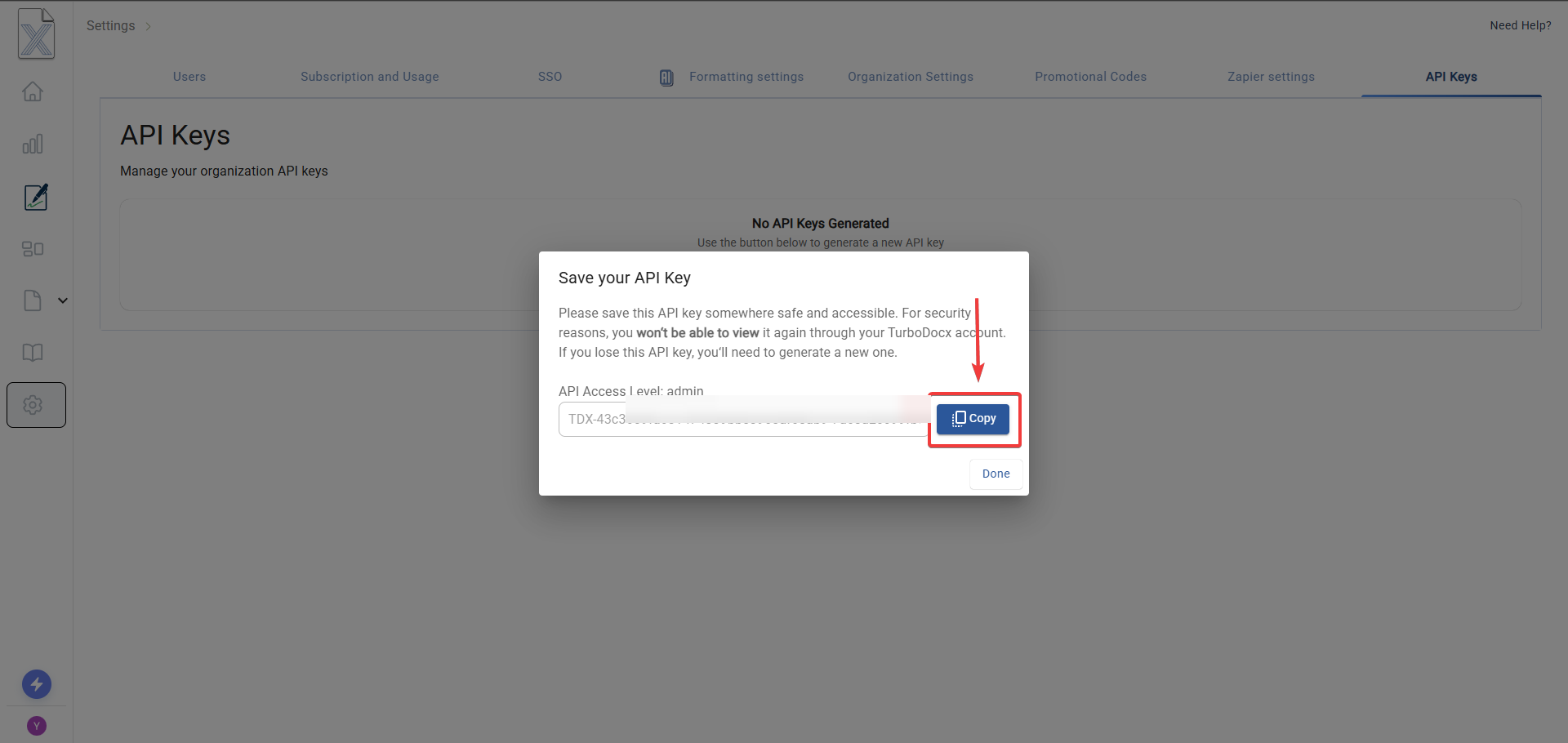
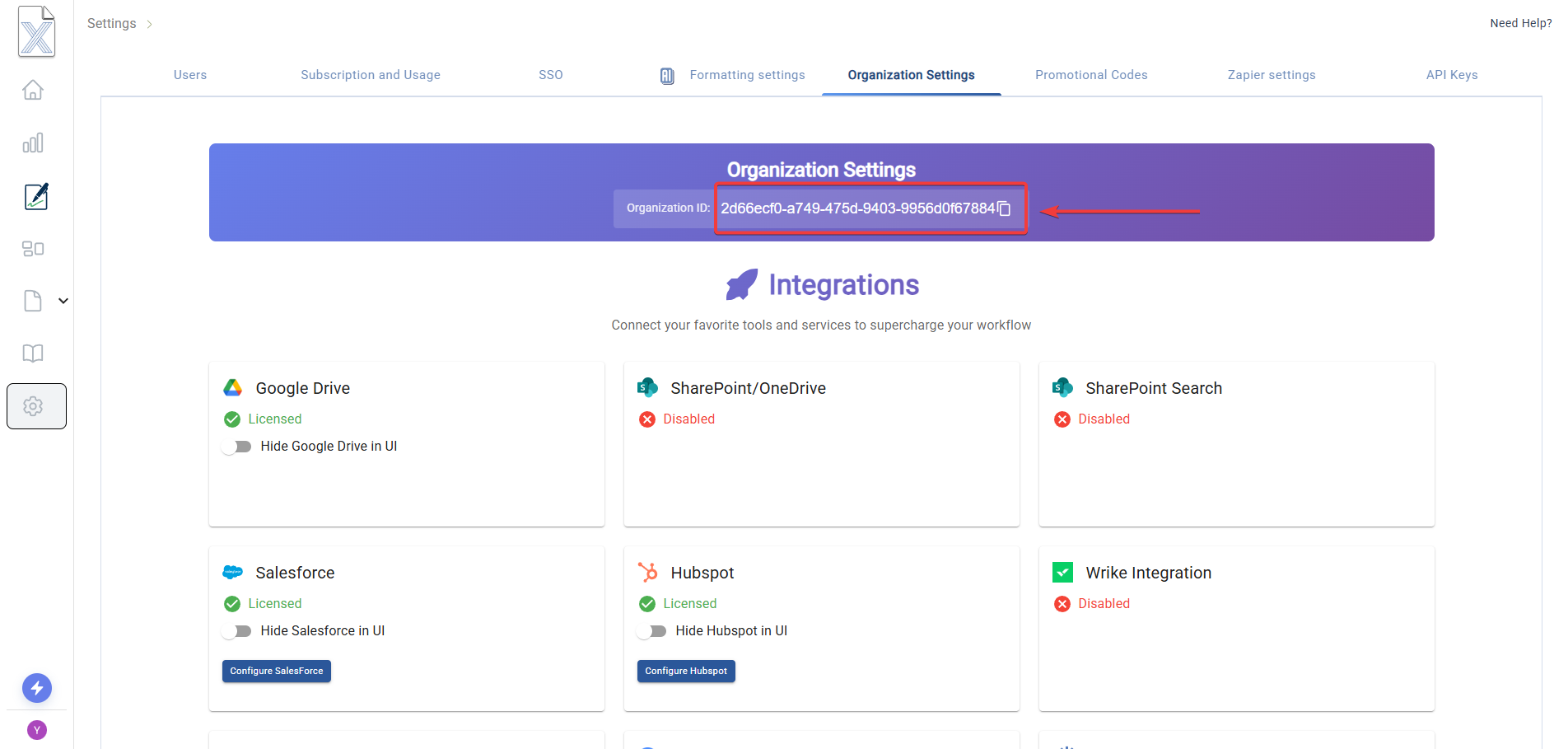
Authentication
All TurboSign Bulk API requests require authentication using a Bearer token:
Authorization: Bearer YOUR_API_TOKEN
Additional required headers for all requests:
x-rapiddocx-org-id: YOUR_ORGANIZATION_ID
User-Agent: TurboDocx API Client
These authentication headers are identical to the single-step API. If you're already using the single-step API, you can use the same credentials for bulk operations.
API Endpoints
The Bulk API provides four endpoints for complete batch management:
| Endpoint | Method | Purpose |
|---|---|---|
/turbosign/bulk/ingest | POST | Create and ingest a new batch |
/turbosign/bulk/batches | GET | List all batches for organization |
/turbosign/bulk/batch/:batchId/jobs | GET | List jobs within a specific batch |
/turbosign/bulk/batch/:batchId/cancel | POST | Cancel a batch and pending jobs |
Endpoint 1: Ingest Bulk Batch
Create a new batch and ingest multiple document send operations. This is the primary endpoint for initiating bulk sending.
Endpoint
POST https://api.turbodocx.com/turbosign/bulk/ingest
Headers
Content-Type: multipart/form-data
Authorization: Bearer YOUR_API_TOKEN
x-rapiddocx-org-id: YOUR_ORGANIZATION_ID
User-Agent: TurboDocx API Client
Request Body (multipart/form-data)
⚠️ Important: documents must be sent as a JSON string in form-data
| Field | Type | Required | Description |
|---|---|---|---|
| sourceType | String | Yes | Source type: file, deliverableId, templateId, or fileLink |
| file | File | Conditional* | PDF file upload (required when sourceType is file) |
| sourceValue | String (UUID/URL) | Conditional* | UUID or URL (required for deliverableId/templateId/fileLink) |
| batchName | String | Yes | Name for this batch (max 255 chars) |
| documentName | String | No | Default document name for all jobs (max 255 chars) |
| documentDescription | String | No | Default description for all jobs (max 1000 chars) |
| senderName | String | No | Name of sender (max 255 chars). Defaults to your API key's name. |
| senderEmail | String (email) | Yes | Batch-level reply-to address and the sender recorded in the audit trail |
| documents | String (JSON) | Yes | JSON string array of document objects |
senderEmail is required at the batch level for API/SDK bulk sends — an API key has no mailbox
of its own, so TurboDocx rejects the batch (HTTP 400) without it rather than sending from an
unmonitored address. senderName is optional and defaults to your API key's name.
* File Source: Must provide exactly ONE of:
file(upload) when sourceType isfilesourceValue(UUID) when sourceType isdeliverableIdortemplateIdsourceValue(URL) when sourceType isfileLink
Documents Array Format
The documents parameter must be a JSON string containing an array of document objects:
[
  {
    "recipients": [
      {
        "name": "John Smith",
        "email": "john.smith@company.com",
        "signingOrder": 1
      }
    ],
    "fields": [
      {
        "recipientEmail": "john.smith@company.com",
        "type": "signature",
        "page": 1,
        "x": 100,
        "y": 200,
        "width": 200,
        "height": 80,
        "required": true
      },
      {
        "recipientEmail": "john.smith@company.com",
        "type": "date",
        "page": 1,
        "x": 100,
        "y": 300,
        "width": 150,
        "height": 30,
        "required": true
      }
    ],
    "documentName": "Employment Contract - John Smith",
    "documentDescription": "Please review and sign your employment contract"
  },
  {
    "recipients": [
      {
        "name": "Jane Doe",
        "email": "jane.doe@company.com",
        "signingOrder": 1
      }
    ],
    "fields": [
      {
        "recipientEmail": "jane.doe@company.com",
        "type": "signature",
        "page": 1,
        "x": 100,
        "y": 200,
        "width": 200,
        "height": 80,
        "required": true
      }
    ],
    "documentName": "Employment Contract - Jane Doe"
  }
]
Document Object Properties:
| Property | Type | Required | Description |
|---|---|---|---|
| recipients | Array | Yes | Array of recipient objects (same format as single-step API) |
| fields | Array | Yes | Array of field objects (same format as single-step API) |
| documentName | String | No | Override batch-level document name for this job |
| documentDescription | String | No | Override batch-level description for this job |
All field types from the single-step API are supported: signature, initial, date, full_name, first_name, last_name, title, company, email, text, checkbox. See the single-step API documentation for details.
Bulk documents use the same field format as the single-step API, so conditional fields work in
bulk batches too. Add a metadata.fieldKey to a controlling checkbox and a
metadata.conditional rule (controllingFieldKey, operator, action) to each dependent field
within the same job's fields array. See
Conditional (IF/THEN) Fields for the full contract, the
show vs. unlock behavior, and the InvalidConditionalRule / fail-open rules.
Response (Success)
{
  "success": true,
  "batchId": "550e8400-e29b-41d4-a716-446655440000",
  "batchName": "Q4 Employment Contracts",
  "totalJobs": 50,
  "status": "pending",
  "message": "Batch created successfully with 50 jobs. Processing will begin shortly."
}
Response (Error)
{
  "error": "Validation failed for 3 documents",
  "code": "BulkValidationFailed",
  "data": {
    "invalidDocuments": [
      {
        "index": 0,
        "errors": ["recipients[0].email is required"]
      },
      {
        "index": 5,
        "errors": ["fields[0].recipientEmail does not match any recipient"]
      }
    ]
  }
}
Code Example
Endpoint 2: List All Batches
Retrieve all batches for your organization with pagination and filtering capabilities.
Endpoint
GET https://api.turbodocx.com/turbosign/bulk/batches
Headers
Authorization: Bearer YOUR_API_TOKEN
x-rapiddocx-org-id: YOUR_ORGANIZATION_ID
User-Agent: TurboDocx API Client
Query Parameters
| Parameter | Type | Required | Description |
|---|---|---|---|
| limit | Number | No | Number of batches to return (default: 20, max: 100) |
| offset | Number | No | Number of batches to skip (default: 0) |
| query | String | No | Search query to filter batches by name |
| status | String or String[] | No | Filter by status: pending, processing, completed, failed, cancelled |
| startDate | String (ISO 8601) | No | Filter batches created on or after this date |
| endDate | String (ISO 8601) | No | Filter batches created on or before this date |
Response
{
  "data": {
    "batches": [
      {
        "id": "550e8400-e29b-41d4-a716-446655440000",
        "name": "Q4 Employment Contracts",
        "status": "completed",
        "totalJobs": 50,
        "succeededJobs": 48,
        "failedJobs": 2,
        "pendingJobs": 0,
        "createdOn": "2025-01-15T10:30:00Z",
        "updatedOn": "2025-01-15T14:25:00Z",
        "metadata": {}
      },
      {
        "id": "660e8400-e29b-41d4-a716-446655440001",
        "name": "Client Agreements - January 2025",
        "status": "processing",
        "totalJobs": 100,
        "succeededJobs": 75,
        "failedJobs": 5,
        "pendingJobs": 20,
        "createdOn": "2025-01-16T09:00:00Z",
        "updatedOn": "2025-01-16T12:30:00Z",
        "metadata": {}
      }
    ],
    "totalRecords": 2
  }
}
Code Example
Endpoint 3: List Jobs in Batch
Retrieve all jobs within a specific batch with detailed status information.
Endpoint
GET https://api.turbodocx.com/turbosign/bulk/batch/:batchId/jobs
Headers
Authorization: Bearer YOUR_API_TOKEN
x-rapiddocx-org-id: YOUR_ORGANIZATION_ID
User-Agent: TurboDocx API Client
Path Parameters
| Parameter | Type | Required | Description |
|---|---|---|---|
| batchId | String (UUID) | Yes | ID of the batch |
Query Parameters
| Parameter | Type | Required | Description |
|---|---|---|---|
| limit | Number | No | Number of jobs to return (default: 20, max: 100) |
| offset | Number | No | Number of jobs to skip (default: 0) |
| status | String or String[] | No | Filter by job status |
| query | String | No | Search query to filter jobs |
Response
{
  "data": {
    "batchId": "550e8400-e29b-41d4-a716-446655440000",
    "batchName": "Q4 Employment Contracts",
    "batchStatus": "completed",
    "jobs": [
      {
        "id": "770e8400-e29b-41d4-a716-446655440000",
        "batchId": "550e8400-e29b-41d4-a716-446655440000",
        "documentId": "880e8400-e29b-41d4-a716-446655440000",
        "documentName": "Employment Contract - John Smith",
        "status": "SUCCEEDED",
        "recipientEmails": ["john.smith@company.com"],
        "attempts": 0,
        "errorCode": null,
        "errorMessage": null,
        "createdOn": "2025-01-15T10:30:00Z",
        "updatedOn": "2025-01-15T11:45:00Z",
        "lastAttemptedAt": "2025-01-15T11:45:00Z"
      },
      {
        "id": "770e8400-e29b-41d4-a716-446655440001",
        "batchId": "550e8400-e29b-41d4-a716-446655440000",
        "documentId": null,
        "documentName": "Employment Contract - Jane Doe",
        "status": "FAILED",
        "recipientEmails": ["jane.doe@company.com"],
        "attempts": 1,
        "errorCode": "INVALID_EMAIL",
        "errorMessage": "Invalid recipient email address",
        "createdOn": "2025-01-15T10:30:00Z",
        "updatedOn": "2025-01-15T10:31:00Z",
        "lastAttemptedAt": "2025-01-15T10:31:00Z"
      }
    ],
    "totalJobs": 50,
    "totalRecords": 50,
    "succeededJobs": 48,
    "failedJobs": 2,
    "pendingJobs": 0
  }
}
Code Example
Endpoint 4: Cancel Batch
Cancel a batch and stop all pending jobs. Already completed jobs are not affected.
Endpoint
POST https://api.turbodocx.com/turbosign/bulk/batch/:batchId/cancel
Headers
Authorization: Bearer YOUR_API_TOKEN
x-rapiddocx-org-id: YOUR_ORGANIZATION_ID
User-Agent: TurboDocx API Client
Path Parameters
| Parameter | Type | Required | Description |
|---|---|---|---|
| batchId | String (UUID) | Yes | ID of the batch to cancel |
Response
{
  "success": true,
  "message": "Batch cancelled. 20 job(s) stopped, 20 credit(s) refunded.",
  "batchId": "550e8400-e29b-41d4-a716-446655440000",
  "cancelledJobs": 20,
  "succeededJobs": 30,
  "refundedCredits": 20,
  "status": "cancelled"
}
Code Example
- Only pending and processing jobs will be cancelled
- Already succeeded jobs are not affected
- Credits are refunded only for cancelled jobs
- Cancellation cannot be undone
Best Practices
Batch Size
Recommended batch sizes:
- Small batches (10-50 jobs): Faster processing, easier to monitor
- Medium batches (50-200 jobs): Balanced efficiency
- Large batches (200-1000 jobs): Maximum efficiency for large-scale operations
For first-time use, start with smaller batches (10-20 jobs) to validate your configuration. Once confident, scale up to larger batches.
Error Handling
Always check for validation errors:
if (response.data.code === "BulkValidationFailed") {
  const errors = response.data.data.invalidDocuments;
  errors.forEach((err) => {
    console.log(`Document ${err.index}: ${err.errors.join(", ")}`);
  });
}
Monitor job failures:
- Regularly check job status
- Review error messages for failed jobs
- Fix issues and retry with corrected data
Credit Management
Credits are reserved when batch is created:
- 1 credit per recipient per job
- Credits are consumed as jobs succeed
- Credits are refunded for failed or cancelled jobs
Example: Batch with 50 jobs, 1 recipient each = 50 credits reserved
Performance Tips
- Use templateId or deliverableId: Faster than file uploads
- Batch similar documents: Group documents with similar configurations
- Validate data before submission: Prevent validation errors
- Use pagination: When listing large result sets
- Implement webhooks: For real-time status updates (see Webhooks documentation)
Data Validation
Before creating a batch, validate:
- All email addresses are valid
- Field positioning doesn't overlap
- RecipientEmail in fields matches actual recipients
- Required fields are present
Error Codes
Common error codes you may encounter:
| Code | Description | Solution |
|---|---|---|
FileUploadRequired | No file provided when sourceType is 'file' | Include file in form-data |
SourceValueRequired | No sourceValue for deliverableId/templateId | Provide valid UUID |
InvalidSourceValue | sourceValue provided with file upload | Remove sourceValue when using file |
InvalidDocumentsJSON | Documents JSON is malformed | Validate JSON structure |
BulkValidationFailed | One or more documents failed validation | Check data.invalidDocuments for details |
DeliverableNotFound | deliverableId doesn't exist | Verify deliverable exists |
TemplateNotFound | templateId doesn't exist | Verify template exists |
BatchNotFound | batchId doesn't exist | Check batch ID |
BatchNotCancellable | Batch already completed | Cannot cancel completed batches |
InsufficientCredits | Not enough credits for batch | Add credits to organization |
Limits and Quotas
Batch Limits
| Limit | Value |
|---|---|
| Maximum jobs per batch | 1,000 |
| Maximum document size | 25 MB |
| Maximum recipients per job | 50 |
| Maximum fields per job | 100 |
| Maximum batch name length | 255 characters |
Rate Limits
| Endpoint | Rate Limit |
|---|---|
| Ingest batch | 10 requests/minute |
| List batches | 60 requests/minute |
| List jobs | 60 requests/minute |
| Cancel batch | 10 requests/minute |
If you exceed rate limits, you'll receive a 429 Too Many Requests response. Implement exponential backoff in your retry logic.
Credit Consumption
- 1 credit per recipient: Each recipient in each job consumes 1 credit
- Reserved on creation: Credits are reserved when batch is created
- Consumed on success: Credits are consumed when job succeeds
- Refunded on failure/cancellation: Credits are refunded for failed or cancelled jobs
Example Calculations:
- 100 jobs × 1 recipient = 100 credits
- 50 jobs × 2 recipients = 100 credits
- 200 jobs × 1 recipient = 200 credits
Troubleshooting
Batch Stuck in "Processing"
Possible causes:
- High system load (normal during peak times)
- Large batch size
- Complex document processing
Solutions:
- Wait for processing to complete (usually < 30 minutes)
- Check job status to see progress
- Contact support if stuck for > 1 hour
Jobs Failing with "Invalid Email"
Cause: Email validation failed
Solutions:
- Verify email format
- Check for typos
- Ensure no special characters in local part
Credits Not Refunded
Cause: Jobs succeeded before cancellation
Solution: Credits are only refunded for cancelled jobs. Already succeeded jobs consume credits.
"DeliverableNotFound" Error
Possible causes:
- Wrong organization ID
- Deliverable deleted
- Incorrect deliverable ID
Solutions:
- Verify deliverable exists in your organization
- Check organization ID matches
- Generate new deliverable if needed
Next Steps
Now that you understand the Bulk API, you might want to:
- Set up webhooks: Get real-time notifications for batch and job status changes. See Webhooks documentation
- Explore single-step API: For individual document sending. See Single-Step API documentation
- Review field types: Learn about all available signature field types
- Integrate with your app: Build bulk sending into your application workflow
Have questions? Contact our support team at support@turbodocx.com